
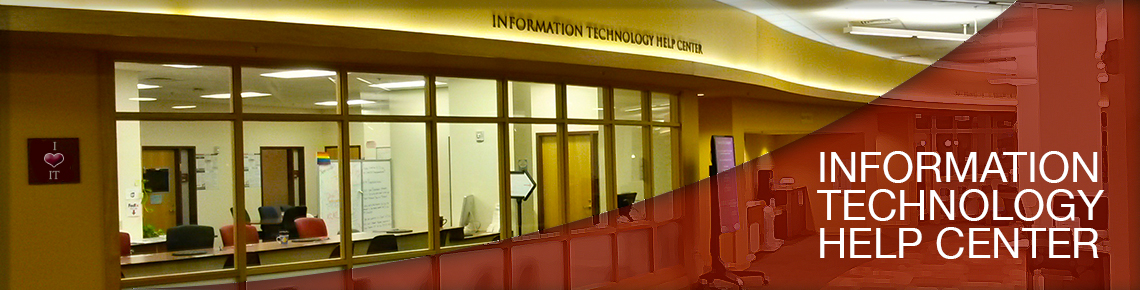
IT has many resources available to assist you. The IT Help Center offers in-person (Anderson Academic Commons), online, and phone support. There is a comprehensive support portal located at support.du.edu as well.
IT Help Center Hours of Operation
Phone Support | 303-871-4700
Monday – Friday | 9 a.m. - 5 p.m.
Saturday | Closed
Sunday | Closed
We will be monitoring our online web tickets on the weekends. If you have a need, please open a ticket with us on our Support Site.
Online and In-Person Support | https://support.du.edu
Monday - Friday | 9 a.m. - 5 p.m.
Saturday | Closed
Sunday | Closed
Service Portal - DU Information Technology
Website: https://support.du.edu
Helpful articles, how-to instructions and online support resources can also be found on the IT Support and Services website tabs or by visiting our Knowledge Base.