






Mobility
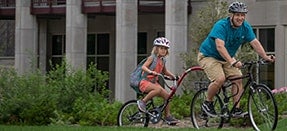
We encourage members of the DU community to shift their travel behavior from single-occupancy automobile dependency to more sustainable modes. This is in the interest of improving safety and aesthetics on campus, as well as decreasing the amount of greenhouse gases released from university-related transportation. Why bring your own car or drive alone to DU? Save money and help build a healthier community by knowing your alternative transportation options.
Commuting Carbon Offset Program
The University of Denver has committed to achieving carbon neutrality by 2030. Commuting to & from campus by the campus community contributes significant greenhouse gas emissions to the University’s carbon footprint.
The Commuting Carbon Offset program will provide a carbon offset purchase option with parking permit purchase. The program is under development with carbon offset selection and cost pending.
Bicycling
Denver and the DU neighborhood are highly bicycle-friendly, and we offer resources that help you make sure your bike is safe and well-maintained.
Campus Shuttle
Our campus shuttle offers both regular and on-demand routes, and can be accessed through the TripShot mobile app.
Car Shares
If you're looking to live a car-free lifestyle but might need a car every once in a while, you can take advantage of one of Denver's several car-share companies.
Ride Sharing
Ride-sharing and carpools are encouraged and a great way to save money, reduce your carbon footprint and even meet new people.
Pedestrian Paths
Take advantage of Denver's beautiful scenery and sunny weather by taking some time to explore the neighborhood's many walking paths.
Denver Mass Transit
The DU neighborhood has numerous connections to RTD, Denver's mass transit system, with buses and light rails spreading across the city.
Contact
Parking & Mobility Services
-
parking@du.edu
-
303-871-3210
-
303-871-2661
-
West Entrance of the Evans Parking Structure
2130 S. High St.
Denver, CO 80208 -
Parking Office Hours: Mon - Thur 8:30am-4:30pm
Closed 12:00 Noon – 1:00pm
Fri by appointment, phone or email only