






All Forms

Background Check Form (.pdf)

I-9: Employment Eligibility Verification (.pdf)

On-campus Employment Eligibility (.pdf)

Employee Tuition Waiver Request Form (.pdf)

Dependent Tuition Waiver Request Form (.pdf)

Job Related Tuition Waiver Form (.pdf)

Job Description (.doc)

Performance Review (.doc)


Performance Management Process and System FAQ's (Frequently Asked Questions)

Decide which way to go...

How do I access the online performance management system?

Access to the performance management system and your performance form is through webCentral. Click here to enter your DU ID number and webCentral passcode. After logging in, you will be redirected to the performance management system.


I am locked out of webCentral. How do I reset my password?

You can call the UTS help desk at x14700. Or, on the login page, you can click the "forgot your passcode?" if you remember your security question.


Who do I contact for assistance?

Each Division has a Performance Management Division Lead that is the first line of support for performance management process and system questions. Division leads are listed on the performance management page on the HR website at http://www.du.edu/hr/peds/index.html. You can also email hr-systemhelp@du.edu with questions or call the HR front desk at x17420 or Josh Navarro at x17726 for assistance.


How do I start the process? What I am responsible for completing? What is my manager responsible for completing?

The 2012/2013 Performance Management Process Guide provides instructions on how to complete each section and by whom.


Do my job responsibilities and goals roll-over into the 2012/2013 performance form?

By implementing the full performance and goals functionality, the job responsibilities and goals entered last year will not roll-over into the 2012/2013 form. However, you can open the 2011/2012 form and copy and paste into the new form.


What changes have been made for the 2012/2013 performance year?

The performance form can be used the exact same way as last year. However, new functionality and features have been added based on feedback received over the past year. New functionality and changes include:

Revised process step names – to help clarify process (shown at top of form in green boxes):Setting Expectations (replaced Goal Setting and Planning)Progress Discussions (replaced Quarterly Discussions)Self-Assessment (same)Review by Manager and Annual Performance Review Meeting (replaced Review by Manager)Performance Review Acknowledgement and Signature (replaced Signatures)

*This completes the process for the manager and employee

Calibration (year-end reporting performed by HR)Goals Tab – ability to access a goals library with 500+ smart goals, a goal wizard (walks you through setting SMART goals) and the option to set cascading goals.Stack Ranker - the manager can now add comments for all direct reports from one screen during the review by manager step.Ability to move the form back – the manager is now able to send the performance form back (instead of calling HR), if there are changes that need to be made to the self-assessment.Fewer steps in the process – After the manager and employee complete the annual review meeting, the manager signs the form and sends to the employee for signature. The employee signs and sends to completed. One less step in the process.Sustainability Competency - new competency added to the competency library.


Does the system have an auto save feature?

The system will time out after 30 minutes of inactivity and any unsaved work will be lost.

It's always a good idea to save your work often. You can do this by clicking on the blue diskette icon on the top right of your form.


How do I print a performance form?

Open the performance form that you would like to print and click the print icon located on the top right of the performance form.


Process Questions


What is DU's performance management cycle?

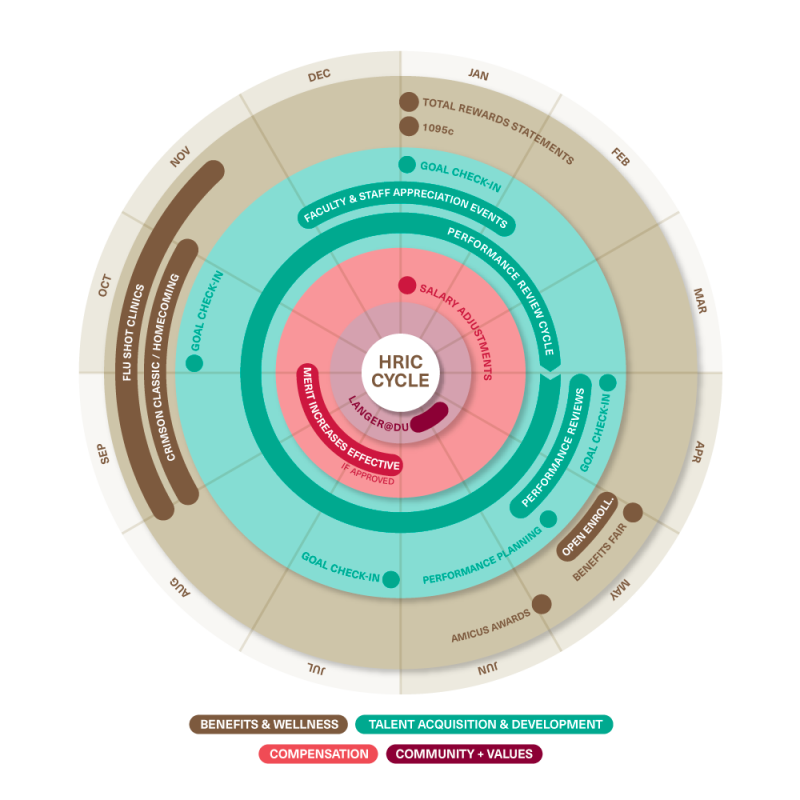
DU's performance management cycle runs October through September.


What are the timelines to complete each step of the performance management process?

The recommended University timeline is:

Setting Expectations: Mid-October through December

Progress Discussions: January through July

Year-End Review: August through October

The deadline to complete the 2012/2013 performance form is Friday, October 11, 2013. However, specific timelines throughout the process may vary by Division. Check with your manager for details.


Who's required to use the online performance management form?

All benefited, non-union, employees are required to complete the process.


How do I know when my 2012/2013 performance form is ready?

You will receive an email notification that your form has been created and is ready for you to being the setting expectations step.


What if do not have a 2012/2013 performance management form in my inbox?

Contact Josh Navarro in HR at Joshua.Navarro@du.edu or by phone at x17726. Note: If you have already started the process, and your form is not showing in your inbox, you can also check your en route box. During the year-end process, you may have a read only version while your direct report is working on their self-assessment or your manager is working on your review by manager.


What if my supervisor and/or direct reports are not assigned correctly?

Contact your Performance Management Division Lead to confirm the reporting structure and have the lead complete the online supervisory reporting structure change form online at http://www.du.edu/hr/oe/ChangeForm.html.


What if I am a new employee and start in the middle of the performance management year?

If you start after the beginning of the performance cycle, that's ok. You will want to meet with your manager to review your job descriptions and expectations. Then complete the first step in the form, setting expectations, within 30 days of hire.


If my hire date is after July 1st do I still need to complete a performance form?

Yes. Even if you are not merit eligible, it's important to set expectations with your manager and receive feedback on your progress and performance.


How do I complete my form if my responsibilities change or I transfer to a new job during the performance year?

You would keep the prior responsibilities/goals listed in your form and add the new ones. Then, work with your manager to adjust the weighting to reflect the amount of time spent on the past responsibilities and the amount of importance for the new responsibilities/goals. Your performance form is based on the work you've complete throughout the entire performance year, not just a specific role.


What if my manager changes during the performance year? Who completes my year-end review?

If your manager changed towards the end of the performance cycle, your new manager may ask your prior manager to complete the year-end review. Or, your prior and new manager may discuss your performance and decide on who will complete the form. There is also an option to send a performance form for feedback to another employee at DU. However, we recommend calling HR to discuss this process since there are several solutions available.


What if I am going to be out on extended leave during the year-end review process, and not complete the form prior to Friday, October 11th?

Please work with your manager on how you will complete the process. Your manager should notify HR if the performance form will not be completed on time.


Do I have access to my completed performance forms from past years?

Yes. Click on the performance tab, then under My Forms, click on the Completed option. You can view and print a copy of your form.