
Click on the following links for information on how to install DUO:
- Duo for iOS
- Duo for Android
- For a list of all available devices and additional information, please refer to the left navigation menu on https://guide.duo.com/.
View the chart which shows both the old and the new iBanner shortcut keys.
Use the PrintScreen key on your keyboard, then use the paste function to paste the image into a document. New iBanner uses the print functionality of your browser rather than printing the screen, which may give undesired results.
The "Start Over" button in the new iBanner returns you to the key block of the form; it’s the same function that we used to refer to as "Rollback."
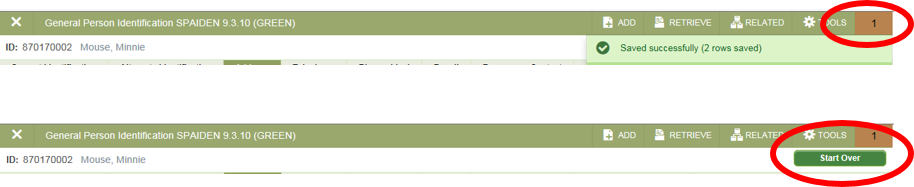
In the new iBanner, if there is a message (for example, record saved or an error message), you will see a number above the message. Click the number to return to the "Start Over" button.
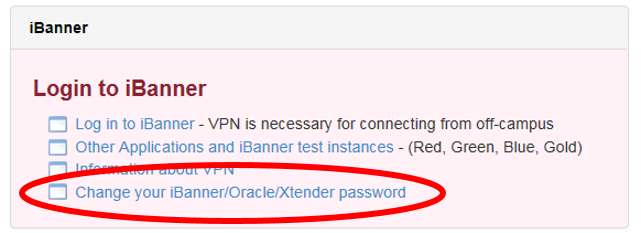
If you do not know or remember your Xtender password, you can change it by clicking on "Change your iBanner/Oracle/Xtender password" link on the Banner tab in PioneerWeb.
The buttons are still there, they just look different in the new iBanner. They are now called "ADD" and "RETRIEVE" documents.

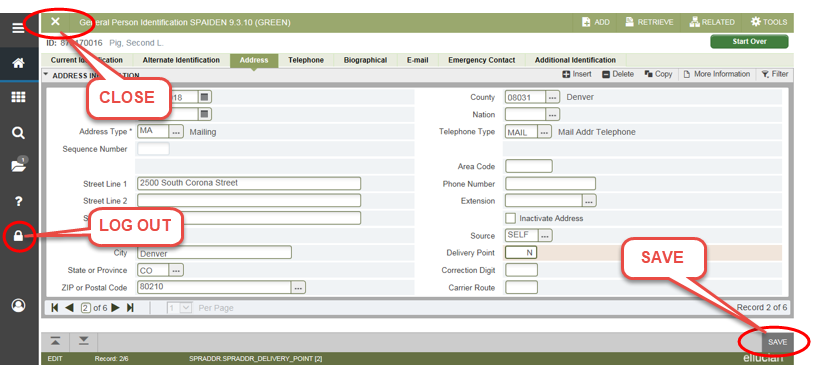
You can use the same shortcut keys that we used in the old iBanner, F7 and F8. In the new iBanner queries are called filters. Use the Filter button to enter a query, or use the F7 function key. Use the ‘Go’ button to execute the query or use the F8 function key.
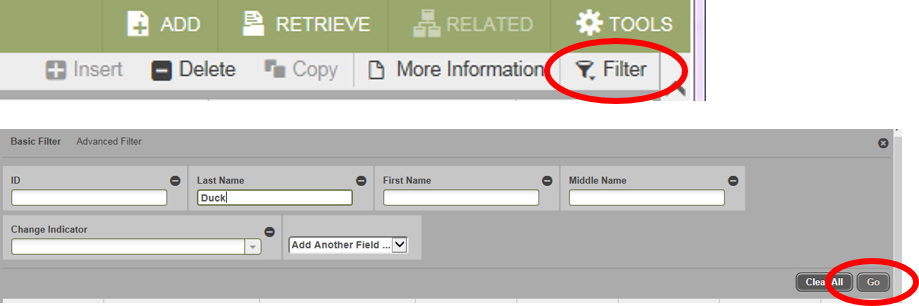
- There is a "Save" button in the lower left corner of your page.
- Use the "Exit" button in the upper left corner of your page to appropriately close the page you are working in.
- There is a "Sign Out" button on the Application Navigation toolbar that will exit your pages and your iBanner session appropriately.
- Do not use the close button in the upper right. Your changes will not be saved.
Your Oracle password is your current Banner password. If you do not know it, please set it by clicking on "Change your Banner/Xtender/Oracle password" link on the Banner Tab in PioneerWeb.
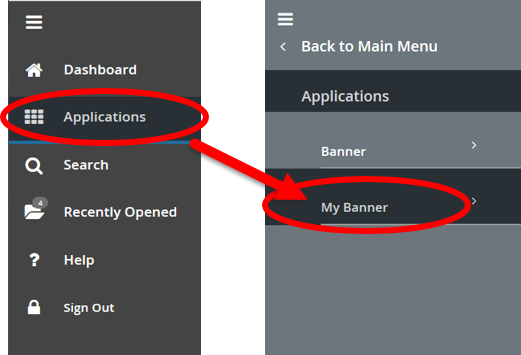
Your "My Banner" menu is found under the "Applications" icon in the Application Navigation toolbar on the left side of your screen.
You will find related pages if you click the "RELATED" icon.

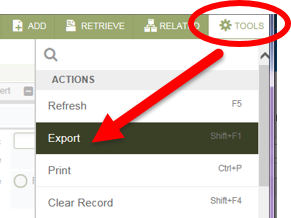
You will find the "Data Extract" function under Tools / Export.
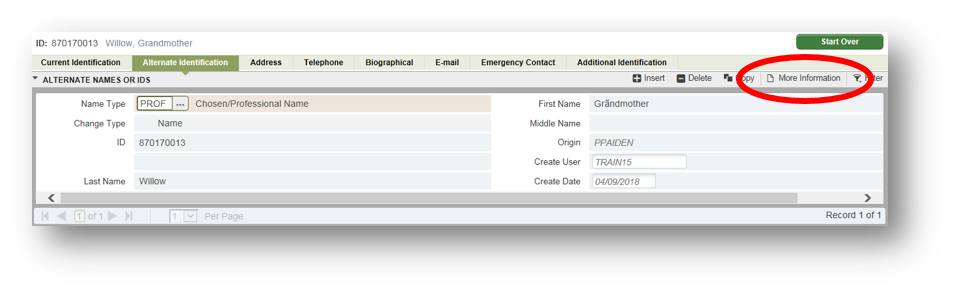
"More Information" will display only when your cursor is in a section of a page that contains the functionality that we used to find on the light bulb.
You will find it on the Application Navigation toolbar.

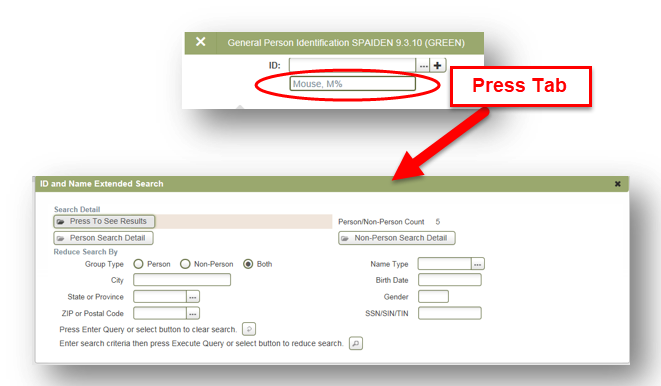
It works the same way in the new iBanner as it used to work. Instead of clicking the ellipses (…) to search, after entering your search criteria press the Tab key from the Name field and you will see an extended search window just like we used to see.
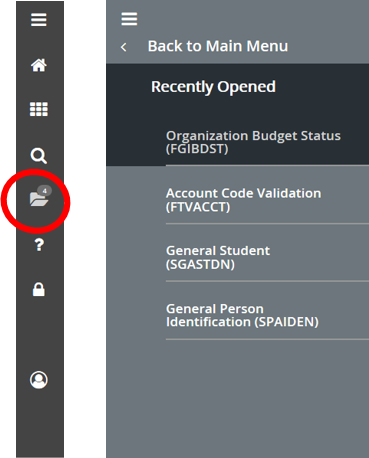
The Application Navigation toolbar has an icon which stores the iBanner pages you have accessed during your current iBanner session.
There are a few forms created or modified by DU that have not been converted to the New iBanner format. Some browsers (Chrome, Firefox) do not display the old forms in the New iBanner. However, Internet Explorer (IE), will display them properly. If the form you selected is in the list below, please open a New iBanner in an IE browser. All forms listed below will be converted by October 15th and this problem will no longer be an issue.
| FZASCTR | NZAPAIF | SZACWDC |
| GZASIPR | NZVMAIL | SZAMSTS |
| GZASSSO | RZACERT | SZANTRD |
| GZATDEP | RZRMGMT | TSICSRV |
| GZATPAD | RZRSECR | TZAHIFW |
| GZVSSSO | SHAGAPP | TZALKUP |
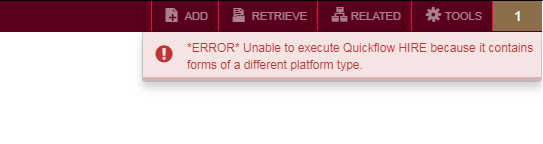
Quickflows do not work in the new iBanner. If you know the forms in your Quickflow, go to the forms directly. Otherwise, continue to use the old iBanner while we work on resolving this issue.
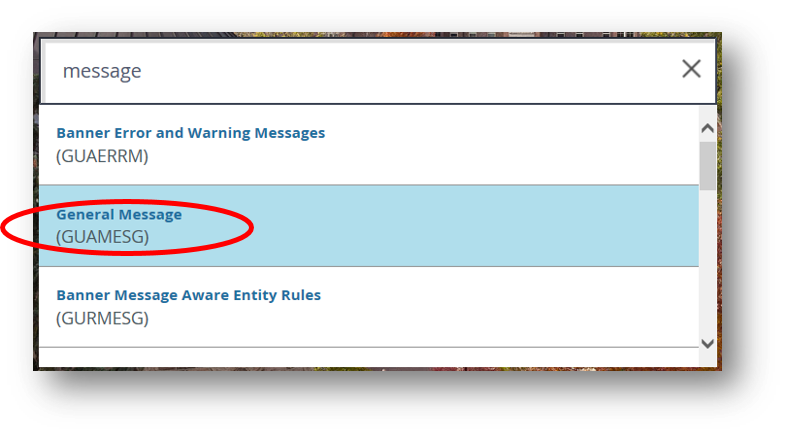
The messages are still in iBanner so you can still get to them, but the flag does not display on the new iBanner Landing page.
In the search bar on the Landing Page – type in either “message” or “GUAMESG”, then select General Message (GUAMESG).
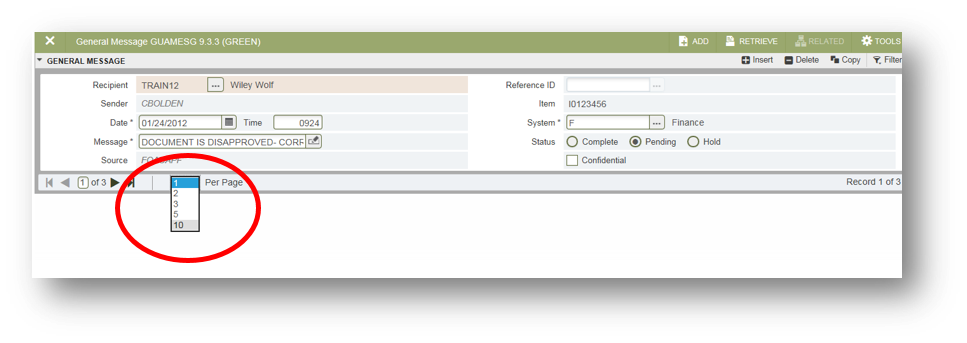
Pending messages will be displayed. The default is to display only one message, but you can change the number:
In the Banner Job Submission form, enter a the future date/time in the MM/DD/YYYY HH:MI military time format (example: 07/28/2018 15:30) in the Submit Time field.
Banner Advancement is being replaced by CRM Advance (also known as Piosphere) on July 17, 2018. You will not be able to access any Advancement screens in iBanner starting at 5:00 p.m. on July 11, 2018. If you have any questions regarding the new CRM Advance system or have an immediate need for Advancement information after July 11, please contact Lisa Redfield at lisa.redfield@du.edu.
Windows PC | Jaws 16 and JAWS 17 | Required browsers: IE 11 or Firefox .
Mac (not mobile devices) running Mac OSX El Capitan (and higher) | Voiceover | Required browser: Safari
Mac (mobile devices) running iOS 9.2.1 or higher | Voiceover that bundles with iOS 9.2.1 and higher