







SciENcv Guidance
How to Prepare and Edit NSF and NIH Biosketches and NSF Current and Pending documents
SciENcv MUST be used for the preparation of National Science Foundation (NSF) biosketches and current and pending support documents for new proposals submitted or due on or after October 23, 2023.
SciENcv must also be used for National Institutes of Health (NIH) biosketch and current and pending (other) support for proposals submitted on or after January 26, 2026.
Access SciENcv through my NCBI: https://www.ncbi.nlm.nih.gov/sciencv/
Full Instructions can be found at: https://www.ncbi.nlm.nih.gov/books/NBK154494/
What is SciENcv?
Science Experts Network Curriculum Vitae (SciENcv) is an electronic system that researchers can use to create and maintain biosketches that must be submitted with NIH and NSF grant applications and annual reports. SciENcv pulls information from other systems, including MyNCBI, ORCID, and eRA commons in order to ease administrative burden and allow researchers to quickly create and recreate a biosketch for each grant application or annual report.
*Information credit to NC State Libraries "Using SciENcv to Create Your Biosketch"
SciENcv Guidance
-
Step 1: Accessing SciENcv
You can access SciENcv a number of ways. The easiest is by going to https://www.ncbi.nlm.nih.gov/sciencv/ and selecting your preferred log-in method. You can also access SciENcv via the NCBI’s My NCBI portal, or by going to PubMed and selecting the “Sign in to NCBI” link at the top right of the screen.
My NCBI is a tool designed for multiple purposes across the NCBI system, including saving and customizing NCBI database searches and creating bibliographies of your own work, in addition to housing the SciENcv system, so if you’re not familiar with My NCBI, finding SciENcv once you’re in My NCBI can be a bit tricky. For most users, the SciENcv box will default to the bottom right corner of your screen, but if you have customized your My NCBI account before, it may be located elsewhere.
Login Options
- ERA Commons
- NSF Research.gov
- Third party party sign-in options:
- University of Denver (select from 3rd party drop-down list)
- ORCID
NIH eRA Commons and ORCID account holders who have linked their accounts to NCBI can populate their SciENcv profiles with the information stored in their eRA or ORCID accounts.
Creating a MyNCBI/SciENcv Account
- Using your web browser, go to https://www.ncbi.nlm.nih.gov/sciencv/ and select your preferred log-in method.
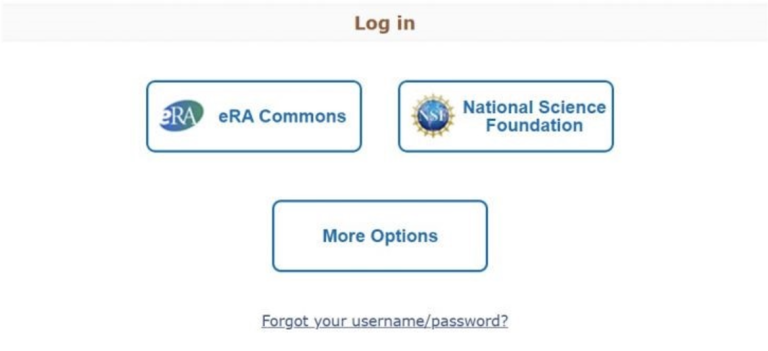
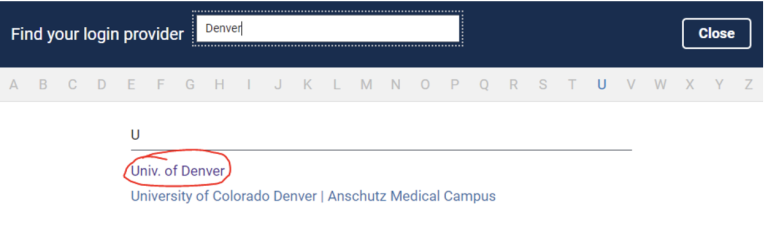
- To log-in using your Unity ID: select “More Options”, then select "more login options": scroll down to select "Univ. of Denver" to log in using your existing Unity ID credentials:
- Or to log-in using ORCID, select "More Options" and scroll down to select ORCID
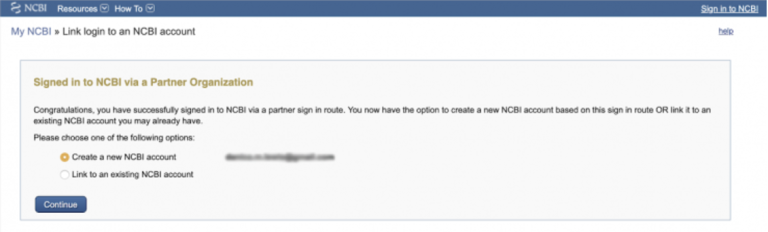
- You will be given the option to create a new MyNCBI account or link your google account to an existing MyNCBI account.
- If you do not already have a MyNCBI account:
- Select “Create a new NCBI account”
- Select the account you wish to use and log in; this will create a MyNCBI account with your email as the username and send a verification link to your email.
- If you already have a MyNCBI account, select “Link to an existing NCBI account”
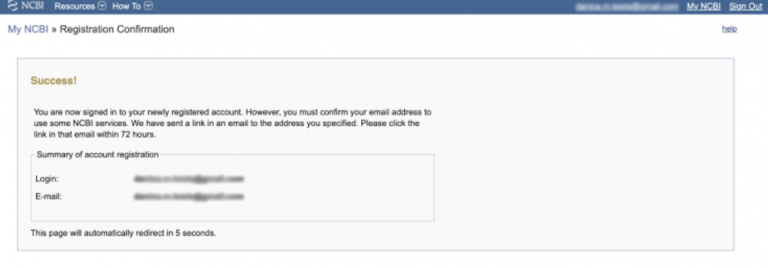
- You’ll see a screen entitled “My NCBI” - this is your landing page for managing tools within the National Center for Biotechnology Information (NCBI).
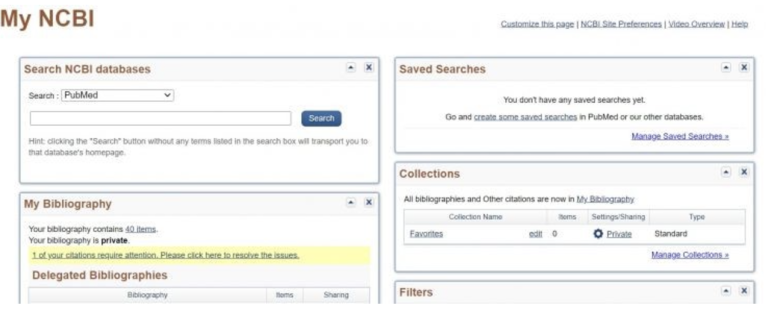
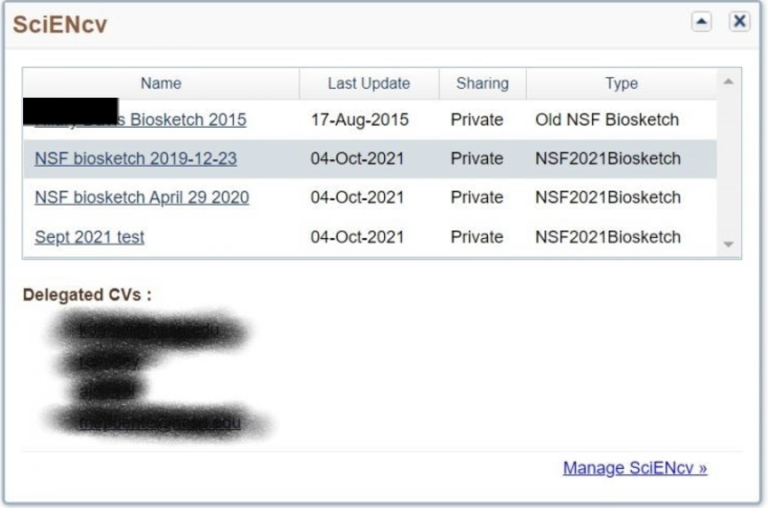
- For most users, SciENcv will be down the page and at the bottom right. Click "Manage SciENcv". If you haven't used SciENcv before, there will be a small box with a link to create a profile. If you have used SciENcv before, you will see links to biosketches you've already created. To get started on your biosketch go to the “SciENcv” section and at the bottom of that section and select “Manage SciENcv”.
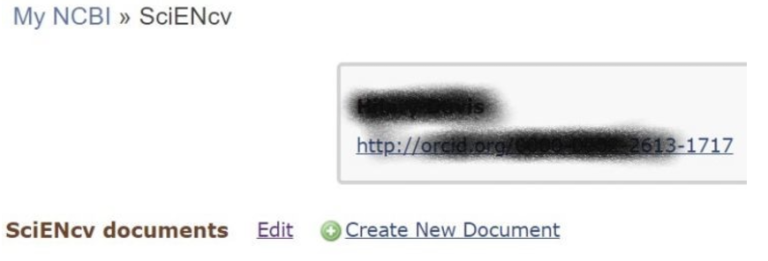
- Select “Create New Document”
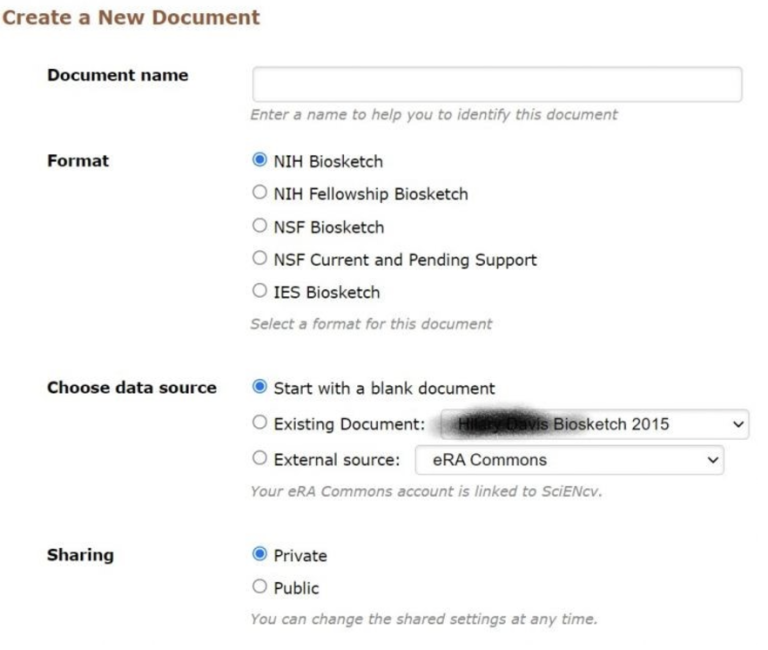
- View the new biosketch template.
For instructions including guiding images, click here.
-
Step 2: Linking information from ORCiD
The easiest way to populate your SciENcv biosketch is through an ORCID iD. If you do not yet have an ORCID iD, please follow this link to do so: https://orcid.org/register.
An ORCID record is a free account that creates a persistent identifier that will follow you throughout your career and allows you to gather all of your scholarly work in a single location. You can use it to add publications to your Biosketch that are not located in PubMed.
The University Libraries can help researchers make their ORCID records more complete. The first step is for researchers to connect their ORCID record with their Unity ID. If you have any questions or would like help registering or with any part of ORCID, please contact Jack Maness, Associate Dean in the University Libraries, at jack.maness@du.edu.
-
Step 3: Delegate Access (Optional)
Any My NCBI account holder can set up one or more delegates for their My NCBI account. Once a delegate has accepted their invitation, they will then have the ability to view, edit, and create profiles in the original account holder’s SciENcv, as well as editing the account holder’s My Bibliography
If you would like to send a delegate request:
- Login to your My NCBI account
- Select your username in the top-right corner of the screen to access the Account Settings page
- Under “Delegates,” select “Add delegate”
- Enter your delegate’s email address and select OK.
If you would like to accept a delegate request:
- Log in to your My NCBI account
- Check your email for the delegate request. If you haven’t received the request email, be sure to check you spam folder – the email comes from myncbi@ncbi.nlm.nih.gov
- Use the link in the delegate request email to accept and confirm the delegation
If you would like to see if a delegate has accepted your request:
- Login to your My NCBI account
- Select your username in the top-right corner of the screen to access the Account Settings page
- If you have sent one or more delegate requests, you will see a table in the Delegates section:
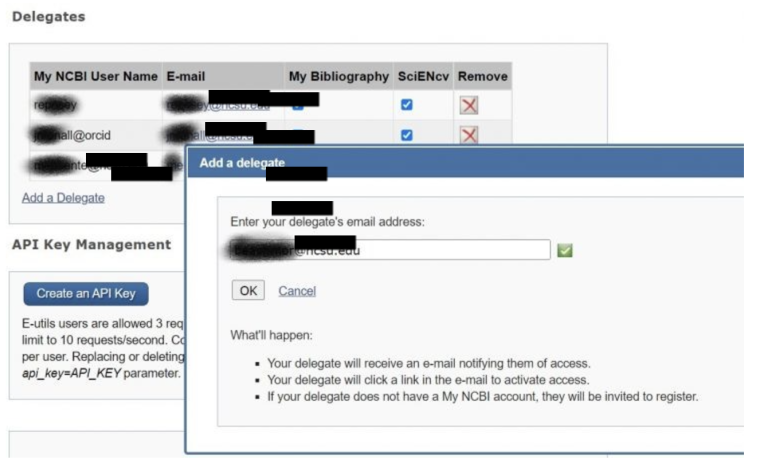
This delegation request has not been accepted – refer your delegate to the instructions on how to accept a delegate request.
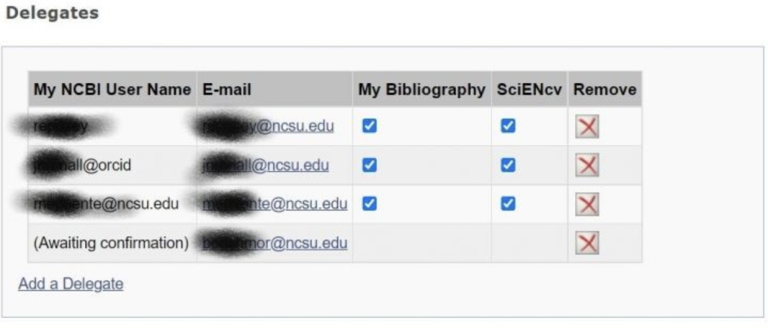
This request has now been accepted.
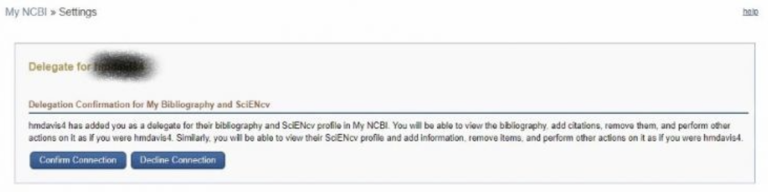
To control what your delegate has access to:
- Login to your My NCBI account
- Select your username in the top-right corner of the screen to access the Account Settings page
- You can use the table in the delegates section to control what your delegates have access to.
- If you have checked the “My Bibliography” box, your delegate will have the ability to view and make changes to your My Bibliography and Other Citations collections. If you have checked the “SciENcv” box, your delegate will be able to create, view, and change your SciENcv products.
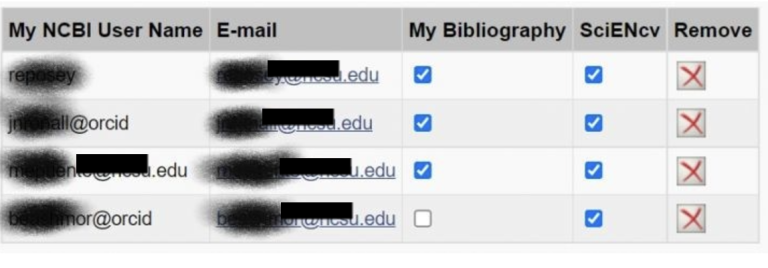
***Note that the Public or Private settings on your My Bibliography or SciENcv have no effect on your delegate’s ability to view and make changes to these resources. Should you wish to remove a delegate, use the "Remove" icon next to the delegate to remove. Should you wish to give a delegate access to only one resource, use the check-boxes.***
To access your delegator’s SciENcv:
- Login to your My NCBI account
- If you have been granted access to your delegator’s SciENcv, you will be able to access it from your SciENcv portlet:
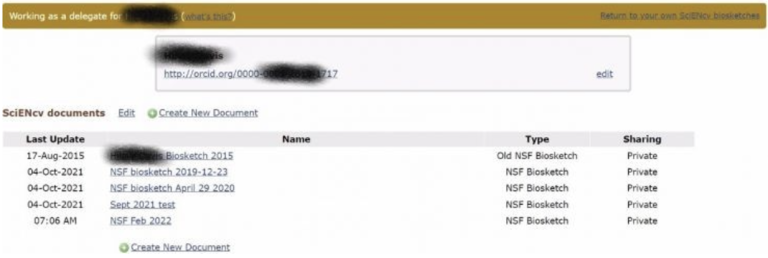
*Information taken from MY NCBI Delegates FAQ and NCBI Insights.
-
Step 4: Creating your Biosketch
To create a new biosketch using your ORCID information, go back to your SciEncv account, sign in if you are not already signed in, and follow these steps:
- Give your new biosketch a name (e.g., 2023 NSF biosketch).
- For Format, select “NSF Biosketch” (if you would like to create an NIH biosketch, select "NIH Biosketch" instead)
- For Choose Data Source, select “External source: ORCID” (Once you have created your first biosketch in SciENcv, you can select “Existing Biosketch” and use a previous biosketch as a template, saving you from having to re-do the process described below)
- ***Note that your biosketch will not dynamically update as you make updates to your ORCID profile - you will want to create your Biosketch after your ORCID profile is up to date.***
- For Sharing, choose if you want the biosketch to be public or private.
- Select “Create”
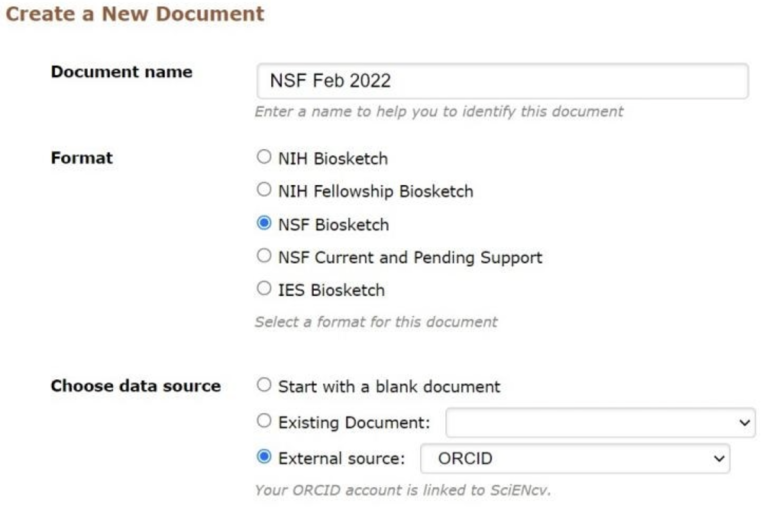
- SciENcv will automatically pull from ORCID to populate your new biosketch. This may take a couple of minutes.
- Scroll down to find section C on "Products" to add the relevant publications - the name of the section will be different for different Biosketch Formats.
- Select "See related products" or "Select other products". Then select the ORCID tab. Select the articles you want displayed in this biosketch. You will also have the option of selecting from your My Bibliography as well. Once you have checked the ones you want, select "Continue."
- The articles you selected should then appear in Section C. You can edit what appears there by selecting "Edit products".
Remember that the more up-to-date you keep your ORCID profile, the more publications or works that you will be able to pull automatically add into SciENcv when you create a biosketch.
For instructions including guiding images, click here.
-
Step 5: Exporting your Biosketch
Once your biosketch is complete you will want to export it to be included in the grant / funder materials.
- On the SciENcv landing page select the Biosketch you want to export
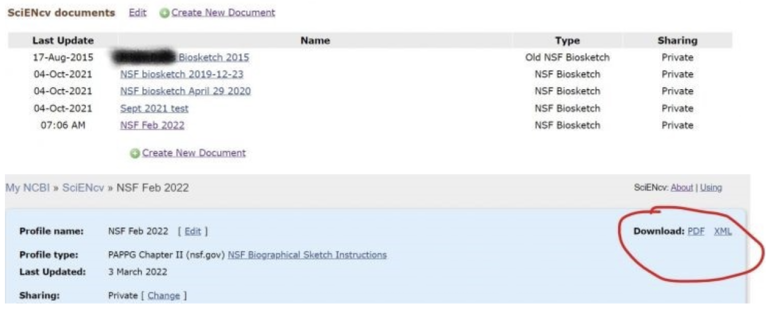
- After you select the biosketch you will have the opportunity to export as a certified PDF.
- When the certified PDF is generated, save it to your computer so that you can upload it with your grant application.
For instructions including guiding images, click here.
-
Step 6: Current and Pending Support
SciENcv will also be required to complete the Current and Pending support section of NSF proposals.
As part of the Current and Pending support section, senior personnel are required to disclose contracts associated with participation in programs sponsored by foreign governments, instrumentalities, or entities, including foreign government-sponsored talent recruitment programs. Further, if an individual receives direct or indirect support that is funded by a foreign government-sponsored talent recruitment program, even where the support is provided through an intermediary and does not require membership in the foreign government-sponsored talent recruitment program, that support must be disclosed. Senior personnel must also report other foreign government sponsored or affiliated activity.
Creating a new SciENcv Current and Pending:
- Create or log into your My NCBI Account.
You can log in with eRA Commons, Google, NSF credentials, ORCID or PubMed. Linking these accounts allows you to pull profiles, publications or products from those databases into your biosketch and/or Current and Pending document. - Click Manage SciENcv to access your SciENcv documents page.
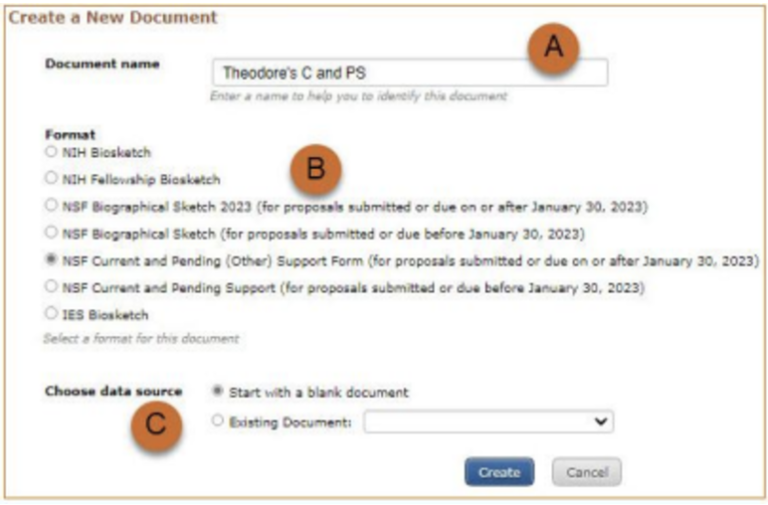
- In the SciENcv documents page click Create New Document.

- (A) Enter a name for your new document.
- (B) Select NSF Current and Pending Support (C & PS).
- (C) Select Start with a blank document or select an existing NSF C & PS document from the dropdown list and click Create.
Adding Your Identifying Information, Organization and Location
Click Add Information to include the position title and position starting date, organization’s name and location.
There is also an option to link the ORCID ID of the Senior/Key person to the NSF Current and Pending Support document. 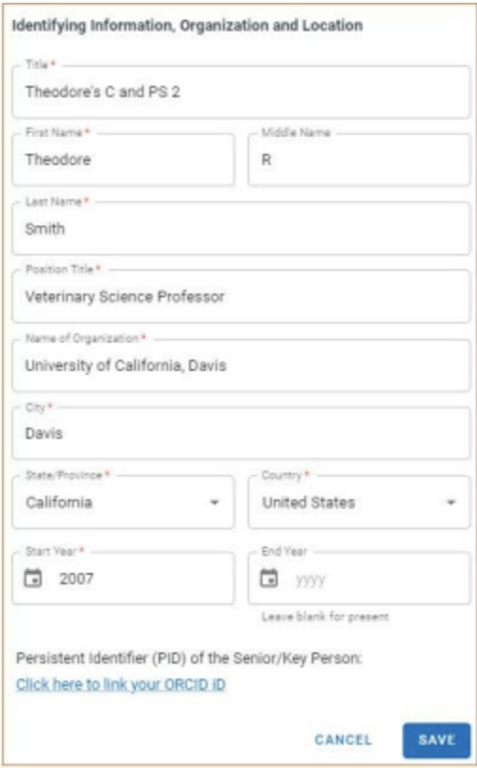
Completing the Project/Proposal Summary Section
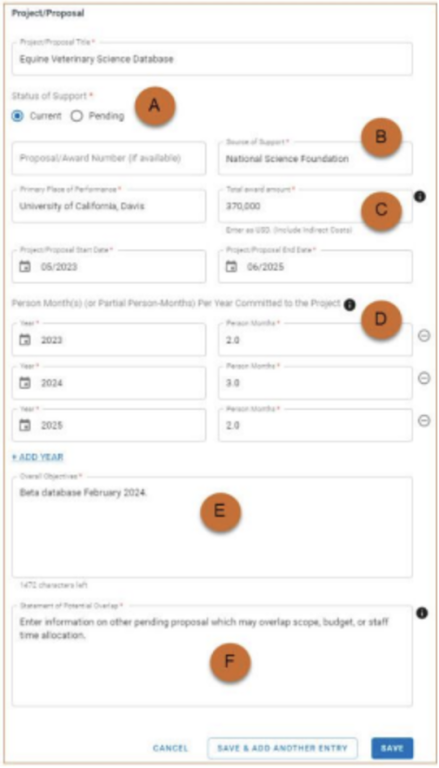
In the Project/Proposal Summary section, create a record for all projects currently funded and projects under consideration for funding.
- Click Add Project/Proposal to create a new record for a project or proposal.
- (A) Select Current or Pending.
- (B) Enter the source of support.
- (C) Enter the total amount of funding requested or provided for the entire project/proposal period, including indirect costs.
- (D) Enter the person and months committed to the project for each year.
Tip: List total effort (sum + acad = total) by year, taking care to avoid more than 12 months of effort in any one year (preferably much less if teaching).
- (E) Give a brief summary of the overall project objectives.
- (F) List any pending proposals that may overlap in scope, budget or effort allocation. If none, state N/A.
- Click Save & Add Another Entry or Save when ready to continue to the next section.
Create an In-Kind Contribution record for all contributions related to current and pending support. Click Add In-Kind Contribution to create a new record.
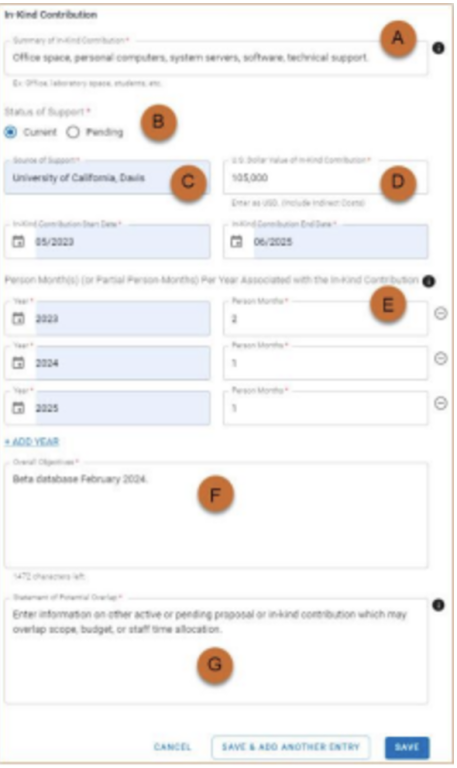
- (A) Include in-kind support such as office or laboratory space, equipment, supplies, technical support staff, etc.
- (B) Select Current or Pending.
- (C) Enter the entity providing the in-kind contribution.
- (D) Enter the dollar value amount of the in-kind contribution.
- (E) Enter the person and months committed to the project for each year.
- (F) Give a brief summary of the overall project objectives.
- (G) List any other active or pending proposal or in-kind contribution that may overlap in scope, budget or staff time allocation. If there is no potential overlap, enter N/A.
- Click Save & Add Another Entry or Save when ready to continue to the next section.
Tip: For in-kind contributions on NSF proposals, the information must be included as part of the Facilities, Equipment and Other Resources section of the proposal and need not be replicated in the Current and Pending Support document.
Agreeing to the Certification Statement
When all sections are complete:
- Click Download PDF.
- Click Agree to the certification statement.
Caution: Do NOT edit the downloaded PDF such as flatten or change content. This will cause an error in upload.
For instructions including guiding images, click here.
-
Additional Resources
You can find more information on using SciENcv at the following links:
YouTube Video: SciENcv Tutorial
YouTube Video: Integrating with ORCID
To troubleshoot issues with SciENcv, you can contact the NCBI Help Desk or info@ncbi.nlm.nih.gov. You can also contact NSF Help Desk at 800-381-1532 or rgov@nsf.gov