







DU Learn (Canvas Catalog)
We’re excited to announce our transition to DU Learn (Canvas Catalog), a new learning management system designed to enhance the accessibility of required trainings for all employees—including staff, faculty, adjuncts, and student employees. This platform offers a more intuitive and transparent user experience, making it easier to discover, enroll in, and complete trainings. With improved navigation, mobile-friendly access, and centralized tracking, DU Learn empowers every member of our community to stay informed and engaged in their professional development.
HRIC Required Trainings
All new employees at the University of Denver are required to complete a set of trainings as part of their onboarding journey. These trainings are mandated by various departments and guided by University policies. While the specific requirements may vary depending on the employee’s role, they generally include the following;
- Diversity and Inclusion
- Preventing Harassment and Discrimination
- Managing Bias
- FERPA
- University Policies
- Active Shooter Preparedness
- IT Security Essentials
- Hazing Awareness and Prevention
All HRIC required trainings are available via DU Learn, providing a centralized and accessible platform for completing these essential modules. For any questions or comments about required trainings, please contact Learning@du.edu.
Canvas Catalog (DU Learn) Quick Start Guide for Employees
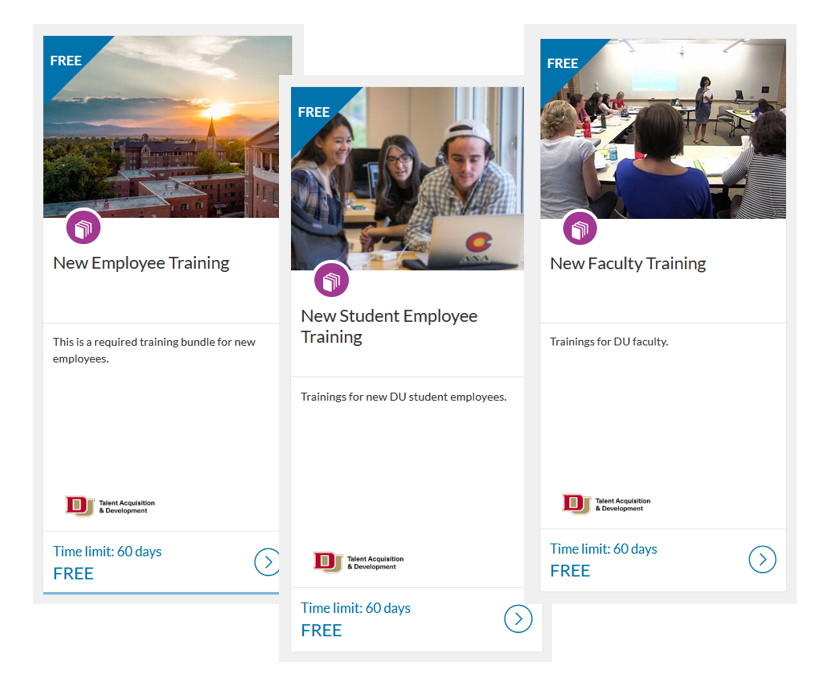
What is DU Learn?
DU Learn is a learning management system for browsing, enrolling, and managing courses and programs offered by the University of Denver for staff, faculty, adjuncts and student employees. DU Learn is managed by the Human Resources and Inclusive Community (HRIC).
DU Learn supports HRIC required trainings, professional development, and self-paced eLearning opportunities.
DU Learn is was built using the Canvas Catalog platform, an additional storefront product that works with Canvas Instructure, combining the powerful experience of Canvas with amplified functionalities for departments (subcatalogs).
Getting Started – Logging In & Navigating
Login to My.4D.edu and click on DU Learn under Employee Tools. This will open a new tab and take you to DU Learn.
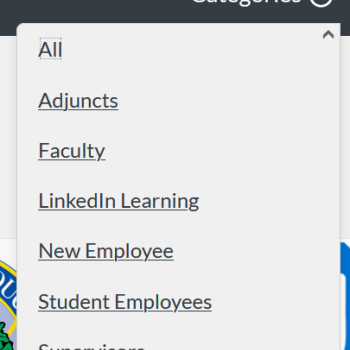
Once you are at DU Learn, you can search for trainings using the “Categories” dropdown. These categories will change as we continue to expand our offerings.
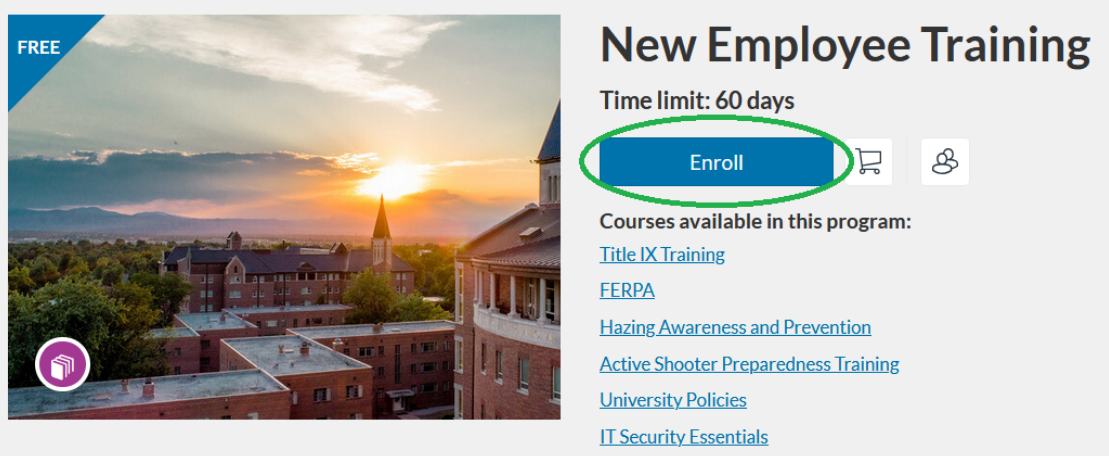
Once you find a course you want to enroll in, click on “Enroll”. This will prompt you to login with your DU login credentials.
Enrolling in Courses & Programs
Locate the course or program and click on “Enroll”, this will prompt you to login with your DU login credentials. You may see options for promotion code or payments, please disregard these options as they are available for future expansions. If enrollment is closed, add yourself to a Wait List to be notified when a spot opens. Make sure to follow the prompts after entering your DU login credentials.
Managing Your Learning – Student Dashboard
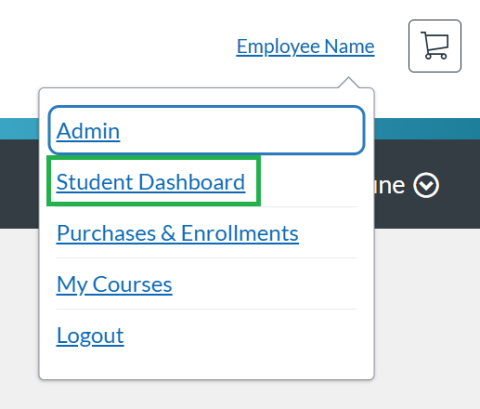
Once you are logged in to DU Learn, you can access the dashboard from the User drop-down menu, you can do this by clicking on your name on the top right, and then clicking on Student Dashboard. Other drop-down options (like Admin) are available according to your role.

Tabs include In Progress, Completed, Not Completed, and Wait List.
Download or print your PDF Transcript of enrollments by clicking on “PDF Transcript” on the top right.
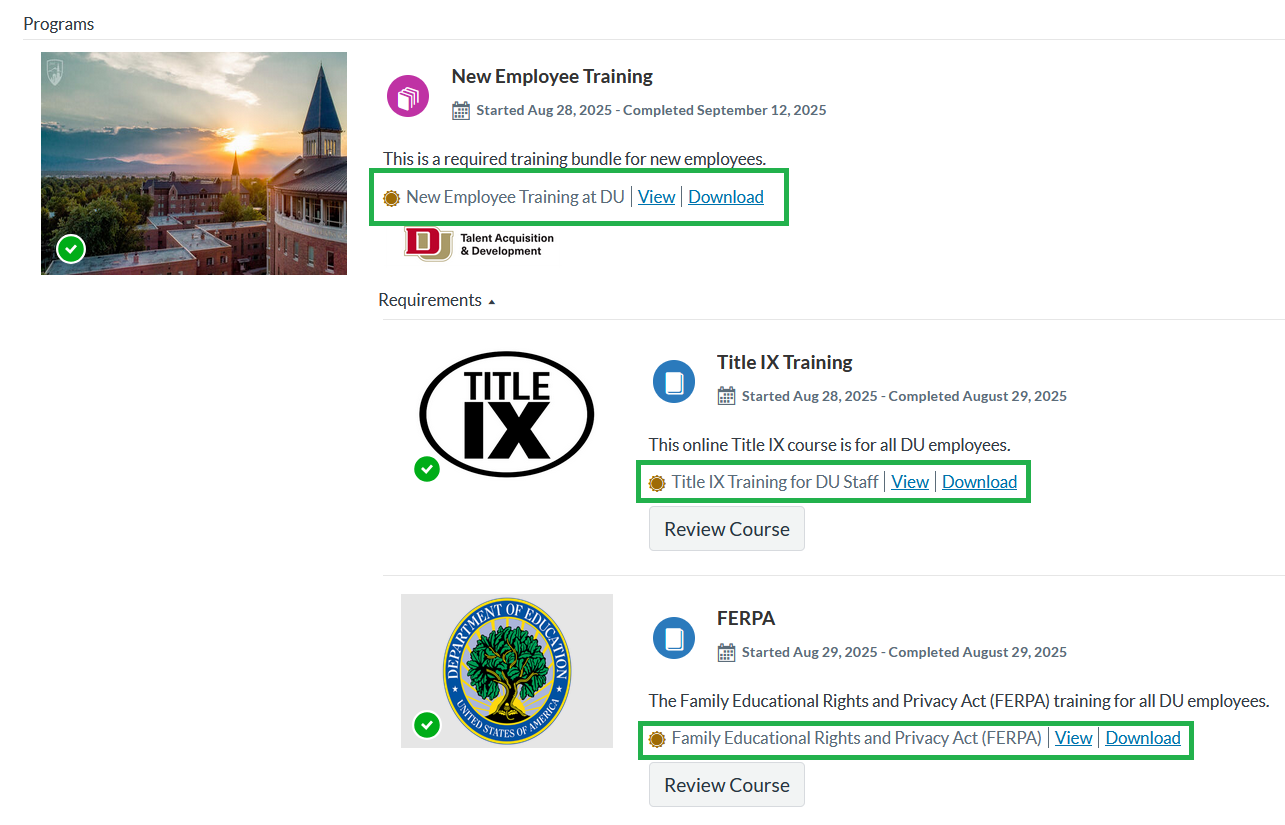
View and download certificates of completion. If you have completed any courses, navigate to the Completed tab, then click on “View or Download” next to the course. You are always able to review your courses in the future.
Canvas Courses & Troubleshooting
Canvas Catalog is built on the Canvas Instructure LMS, the same platform our DU students use. Please note that all courses in DU Learn need to be approved by HRIC. If you are a department interested in creating a course for employees please contact Learning@du.edu.
Tips for first-time Canvas users
For best results using Canvas, make sure your computer meets the basic specifications and use a supported browser. If you’re just getting started, you may want to update your Canvas profile and customize your notification preferences.
Canvas Support Hotline (Students): call 1+(855) 712-9770