







Accessing the Job Offer Form and Offer Letter
Please view our interactive video below or review the screenshots for the step-by-step process. For questions contact Jobs@du.edu.
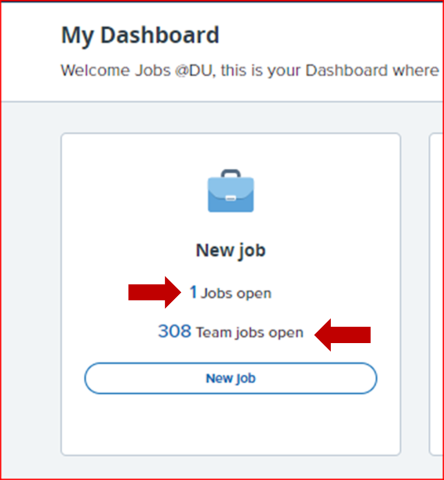
2. From My Dashboard, select Jobs Open or Teams Jobs Open.
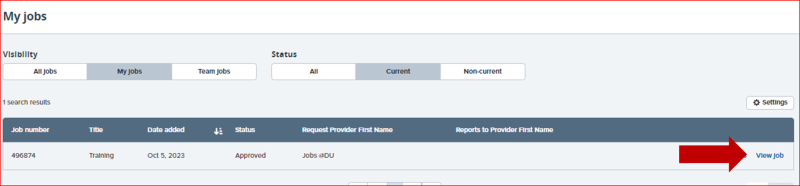
3. Click View for the position you wish to review. Note: Any jobs that have been filled are Non-Current. If you do not see the job you are looking for, adjust your visibility and status.
4. On the following screen, select View Applications.

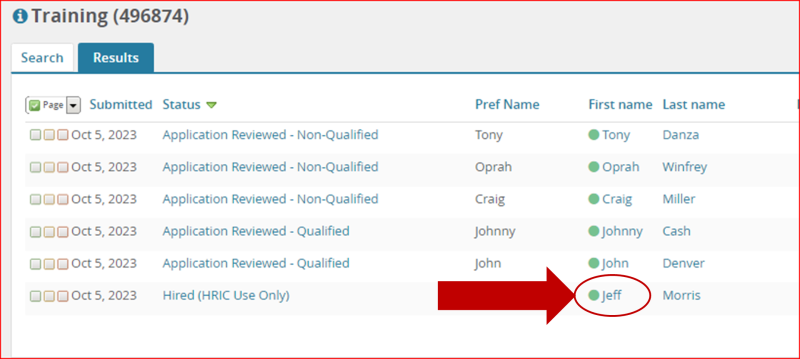
5. Locate your hired candidate, indicated by the status Hired - HR Use Only. Click their name.
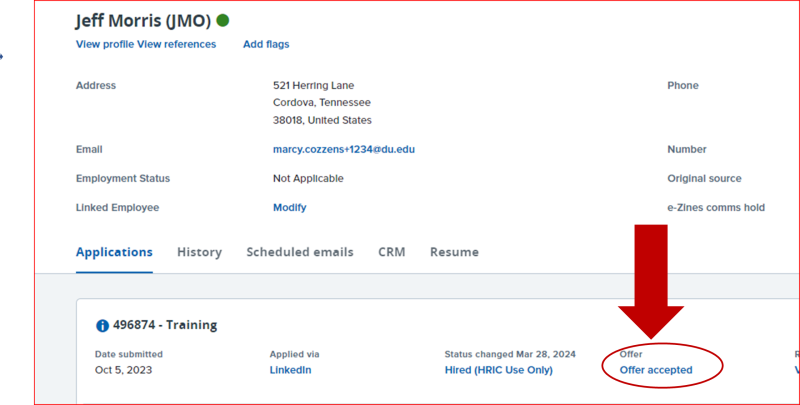
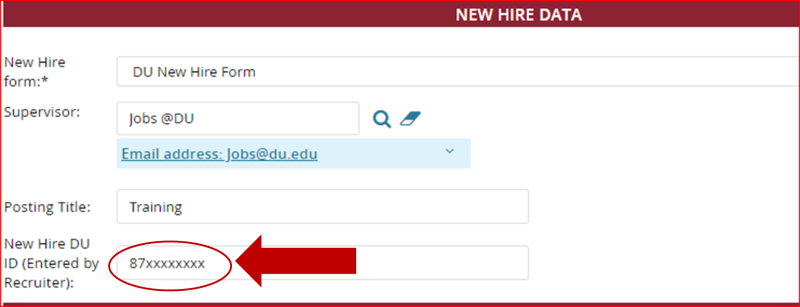
6. To view the candidate's DU ID, select Offer Accepted and scroll down to the New Hire Data section. (Business Officers and Hiring Managers have access to this information).
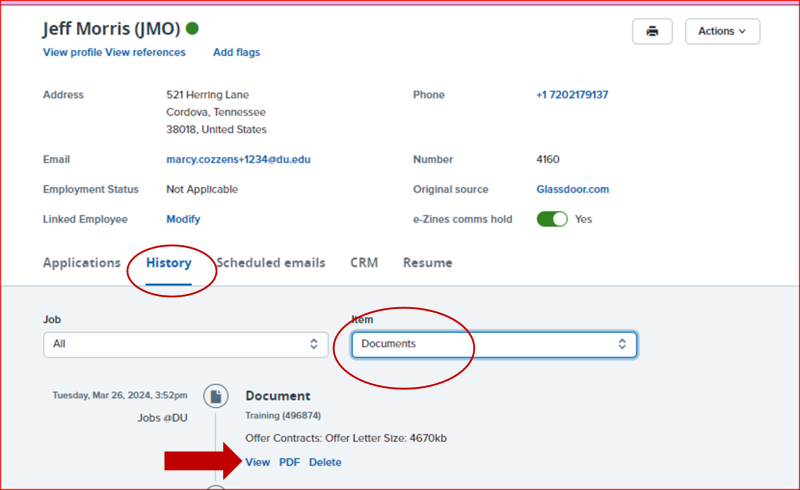
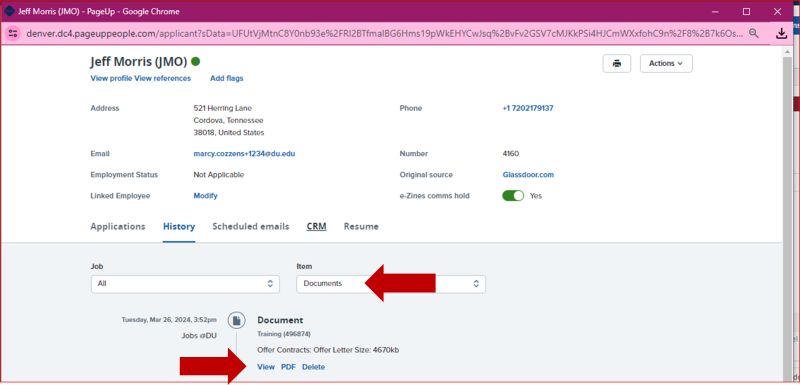
7. To view the offer details, click History then select Documents from the drop-down list. Click the PDF link to download the offer.
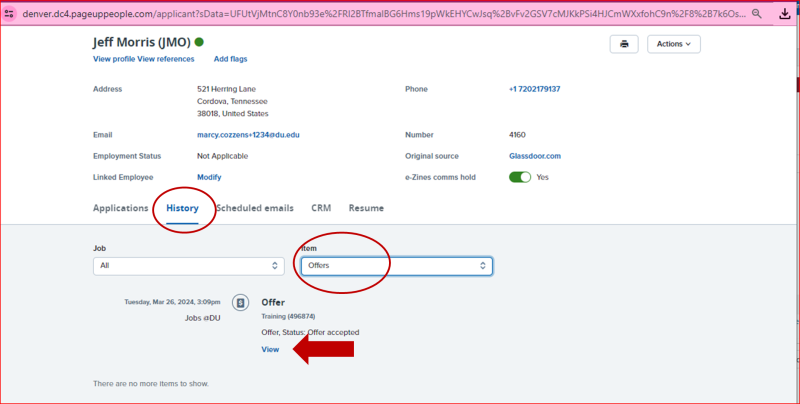
9. To view when the Offer was accepted by the candidate, click History then select Offers from the drop-down list. 10. Click View.
If you have any questions or comments, please contact Jobs@du.edu.