







Creating a Job Requisition for Adjuncts
Learn how to create a job requisition for vacant adjunct positions in Jobs@DU.
This article applies to Hiring Managers and Business Officers.
Creating a New Adjunct Requisition
1. Log in to Jobs@DU.
2. From My Dashboard, click New Job.
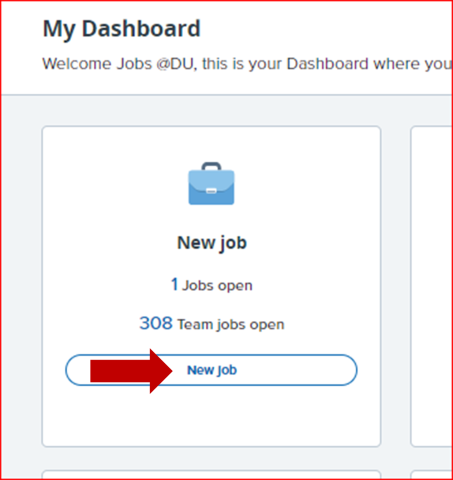
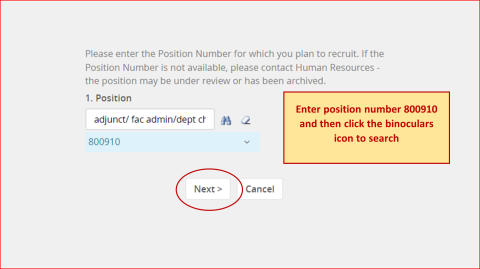
3. Enter the position number 800910 in the space provided, and then click the search button. You must click the search button after entering in the position number. Once selected, click Next.
Requisition Information
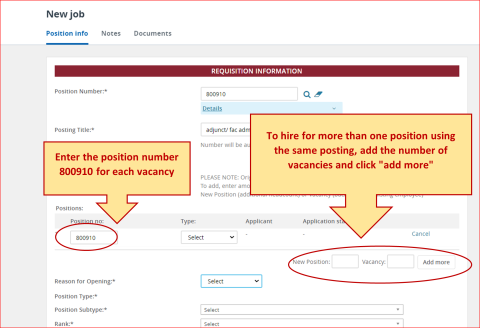
1. In the Position Number field, confirm the position number carried over from the previous screen. If it did not come over go back and search the position number.
2. Click the blue drop-down arrow to view details, including all information linked to the position from Banner.
3. Adjust the Posting Title field as needed. This title will be displayed to applications on the final job posting.
4. To fill multiple positions using the same posting, enter the number of vacancies in the Vacancy field or the New Position field. Click Add More.
5. Complete the required fields (indicated by an asterisk *).
Organization Details
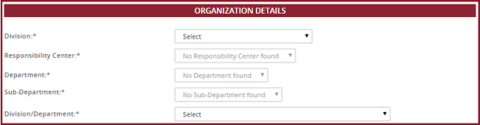
Since non-benefited position numbers are not pulled from Banner, organization details must be entered manually.
1. Complete each field as required:
- Division.
- Responsibility Center.
- Department.
- Sub-Department.
- Division/Department.
Posting Details
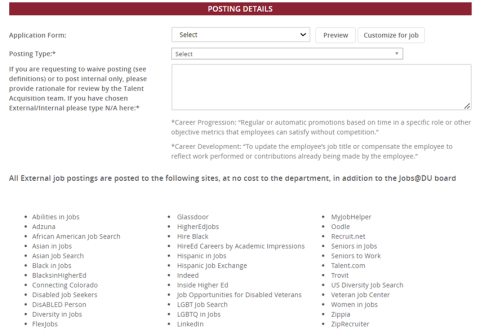
1. In the Application Form drop-down, select the application form that applies to your division and the position.
3. Select a Posting Type. Options include External/Internal, Internal Only, Request to Waive Posting (Career Development), Request to Waive Posting (Career Progression).
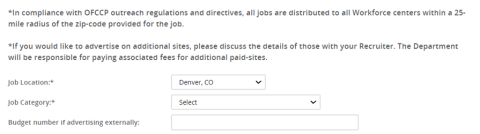
4. The Job Location field defaults to Denver, CO.
5. Complete all other required fields (indicated by an asterisk *).
6. If externally advertising, enter the Budget Number.
Posting Details - Advertising Display
1. In the Advertisement Summary field, enter a three to four sentence summary for the position. This summary will be visible to applicants on the Jobs@DU site.
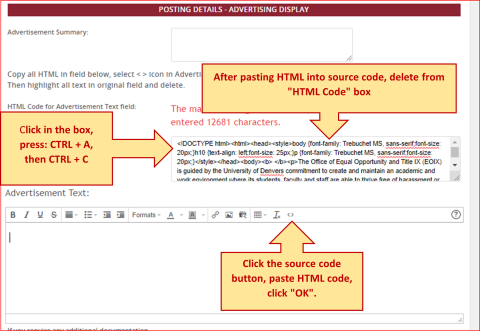
2. To paste the job description in the Advertisement Text box.
a. Click in the HTML Code for Advertisement Text field: box.
b. Press CTRL + A to select the entire code
c. Press CTRL + C to copy the entire code
d. Select the Source Code "< >"
e. In the pop-up window, press CTRL + V to paste the entire code.
f. Click OK. The job description will appear in the Advertisement Text: box.
3. Return to the HTML Code for Advertisement Text field. Click in the box, CTRL + A to select code, and then delete/backspace to clear the code.
4. In the Additional Support Documents field, select the check boxes for required and/or supporting documents.
5. In the Additional Information for the Recruiter field, enter additional information as needed.
6. Complete the required fields (indicated by an asterisk *).
Search Committee Details
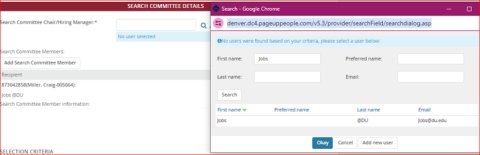
1. In the Search Committee Chair/Hiring Manager* field, search for an employee by entering their name and then selecting the search icon.
2. When found, click their name and select Add New User. Note: This person will see the results of the search committee review if applicable,but cannot move applicants through stages.
3. To add Search Committee Members, click Add Search Committee Member.
4. Search for the Search Committee Member by name, select their name from the list, then click Done. Note: Search Committee Members can view applications but cannot move applicants through stages.
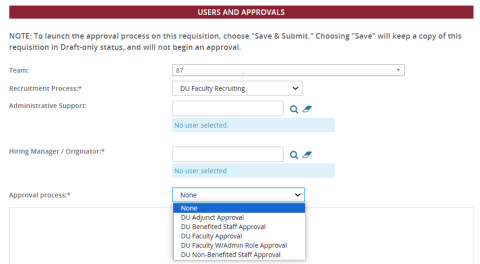
Users and Approvals
1. If you are not the hiring manager, please make sure to select the Hiring Manager's name in the Team field.
2. Select an option from the Recruitment Process drop-down.
3. Administrative Support will have similar access as the Hiring Manager.
4. If you are not the hiring manager, search and add the Hiring Manager in the Hiring Manager/Originator field.
5. Select an option from the Approval Process drop-down.
6. Click Save and Submit. You are done!
Questions? Contact Jobs@du.edu.