







Hiring Manager: Managing your Applicant Pool
View the interactive video below or the step-by-step screenshots.
Questions? Contact Jobs@du.edu.
Learn how to move applicants through various stages in Jobs@DU.
This article applies to hiring managers leading a search in Jobs@DU.
For a list of Applicant Stages, click the following links.
To manage your applicant pool:
2. Select Jobs Open
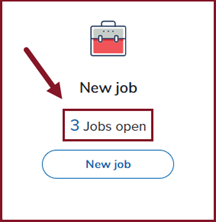
3. In the My Jobs screen, select View to navigate to the Job Requisition screen.
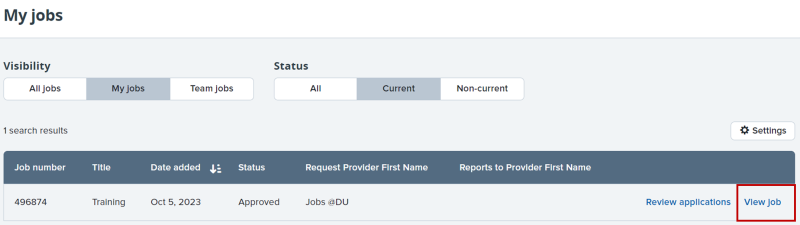
4. From the Job Requisition screen, select View Applications.

5. Select applicants by color (green, yellow, red) to group them together and then move them through stages by choosing Select a Bulk Action and then Bulk Move.
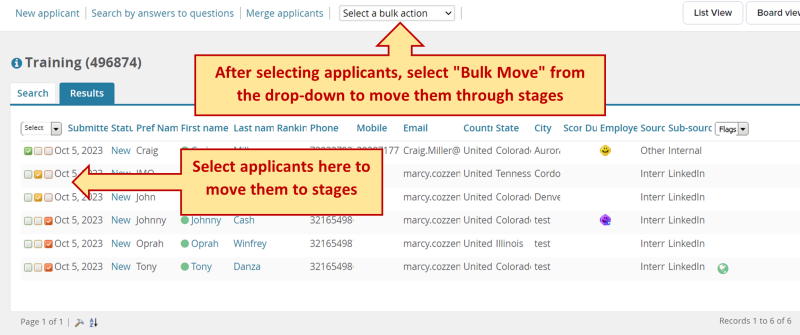
6. From the Bulk Move page, select the desired stage for the applicants marked green. Then click Next.
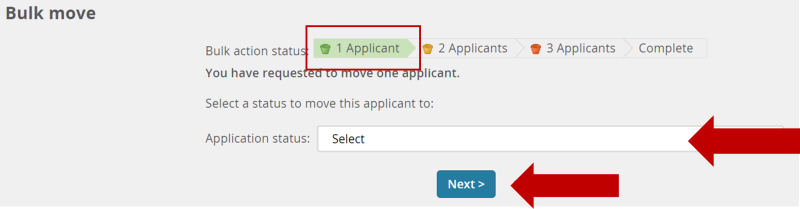
7. Select No under Email Applicants and Additional users from Job. You do not need to email the applicants or add additional users as you move through stages. Click Move Now.
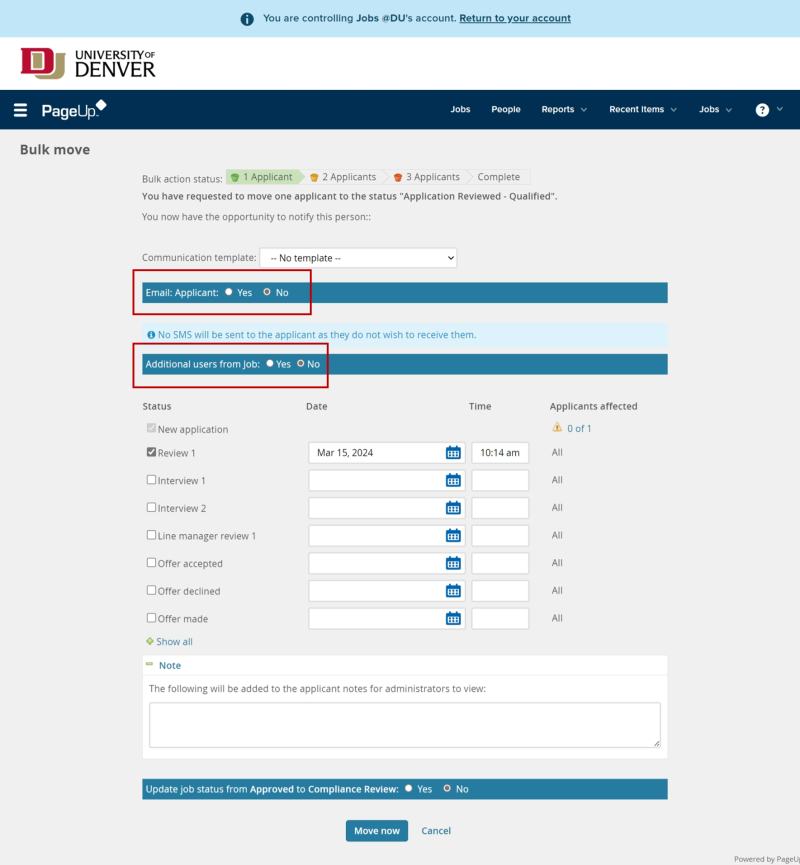
8. You will then be brought back to the Bulk Move page to move candidates marked yellow, then red. Repeat step 7.
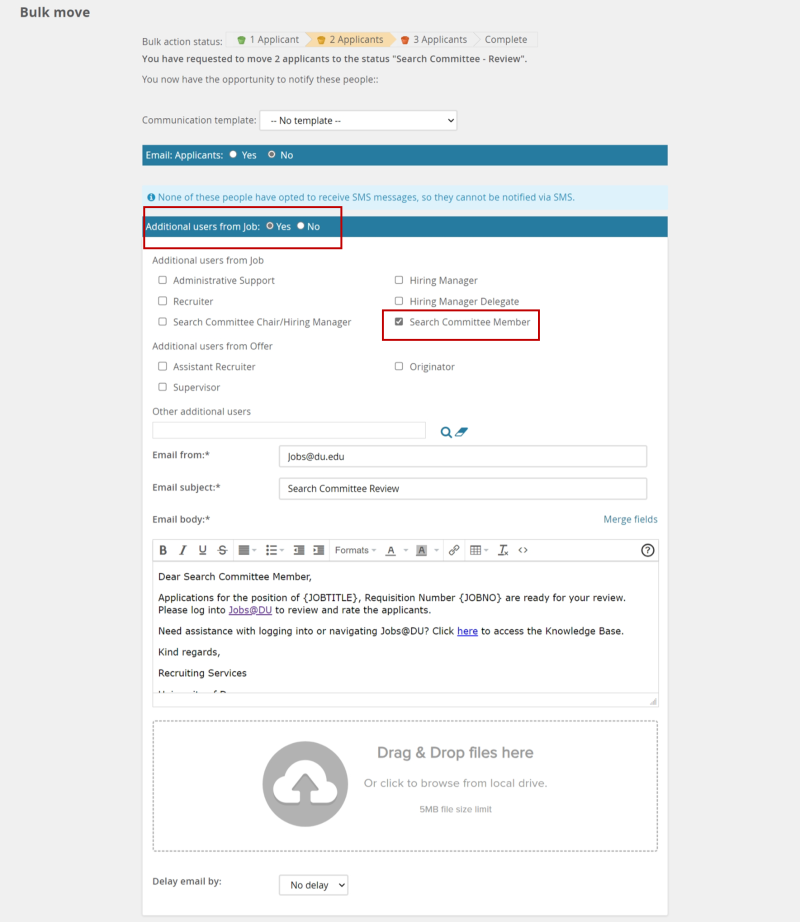
Note: When moving candidates to the Search Committee Review stage, select 'Yes' under Additional Users from job to notify Search Committee Members they have applicants to review.
Questions? Contact Jobs@du.edu.