







Job Offer Creation – Staff
View our interactive video below or the step-by-step screenshots. Questions? Contact Jobs@du.edu.
Learn how to create a staff offer letter in Jobs@DU.
This article applies to Hiring Managers and Business Officers.
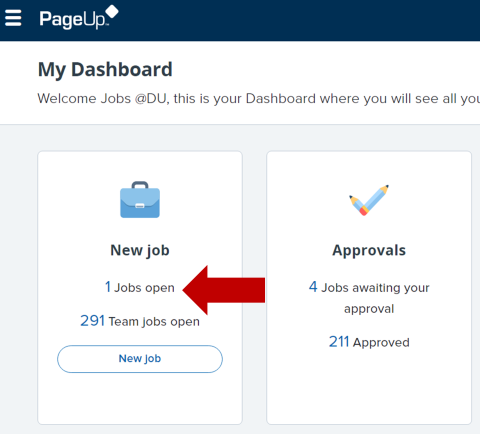
1. From the Jobs@DU homepage, click the Jobs Open link from the job card.
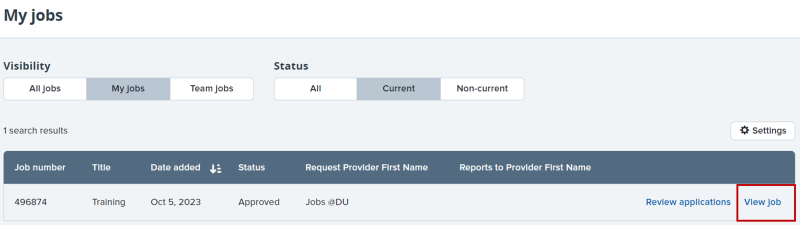
2. From the My Jobs screen, click the row containing the job you wish to view, or click the View Job link.
3. From the Job Requisition screen, click View Applications.

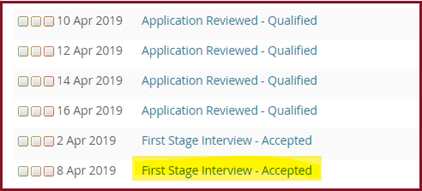
4. From the applicant list, click on the status link of the candidate you would like to extend an offer to.
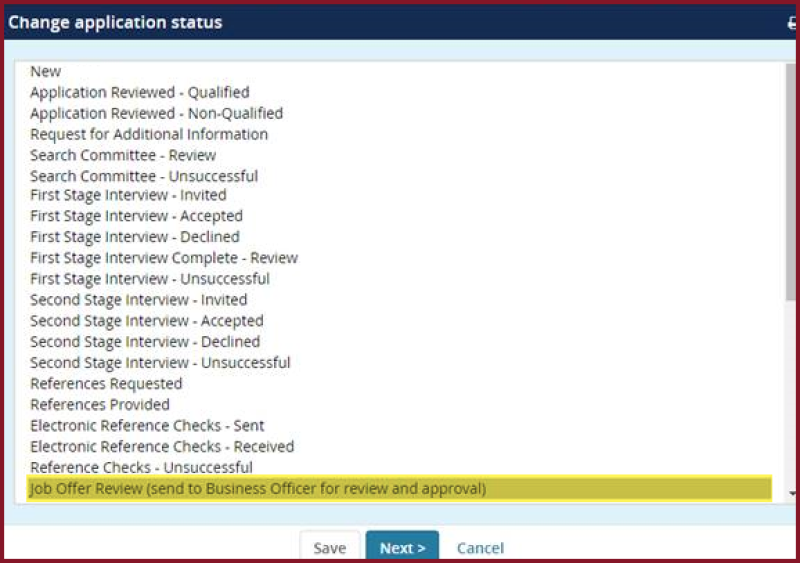
5. A new window will open. Choose Job Offer Review and then click the Next button.
6. You will be brought to a new screen to confirm the status change. Confirm the details and click Move.
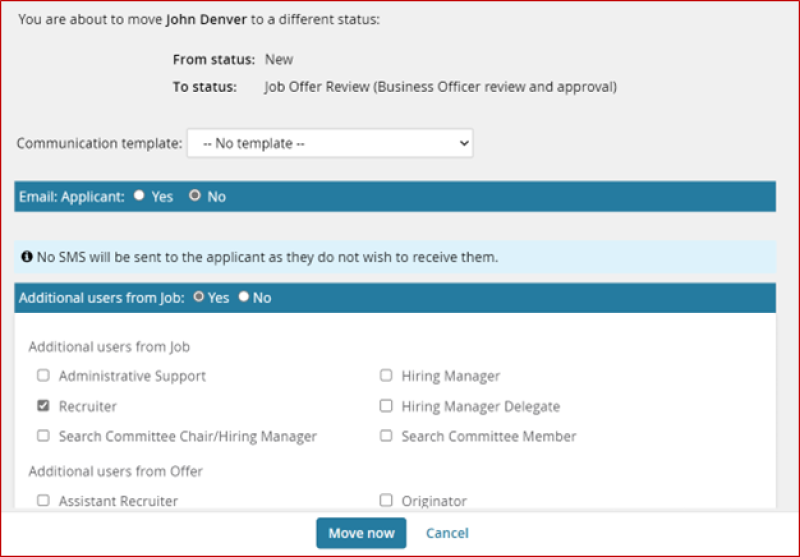
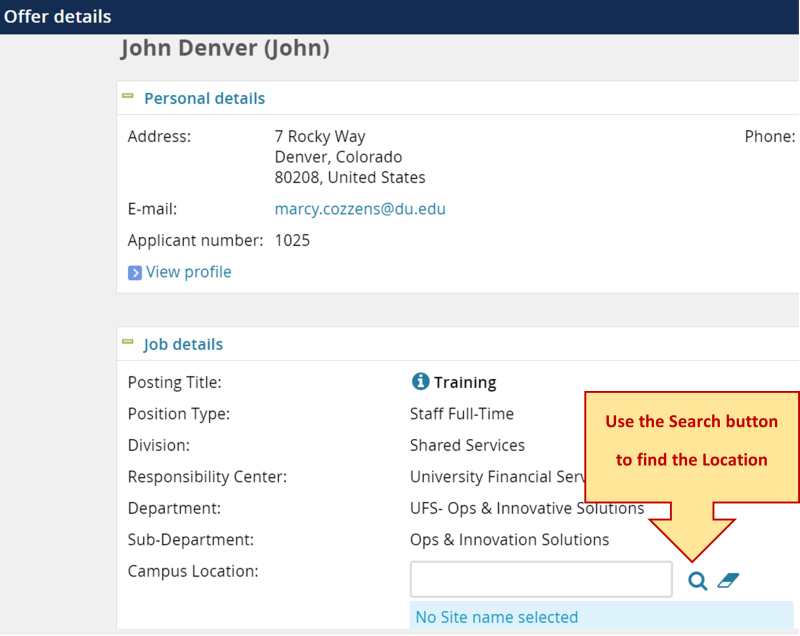
7. On the Offer Details page, use the search function to enter the job Campus Location.
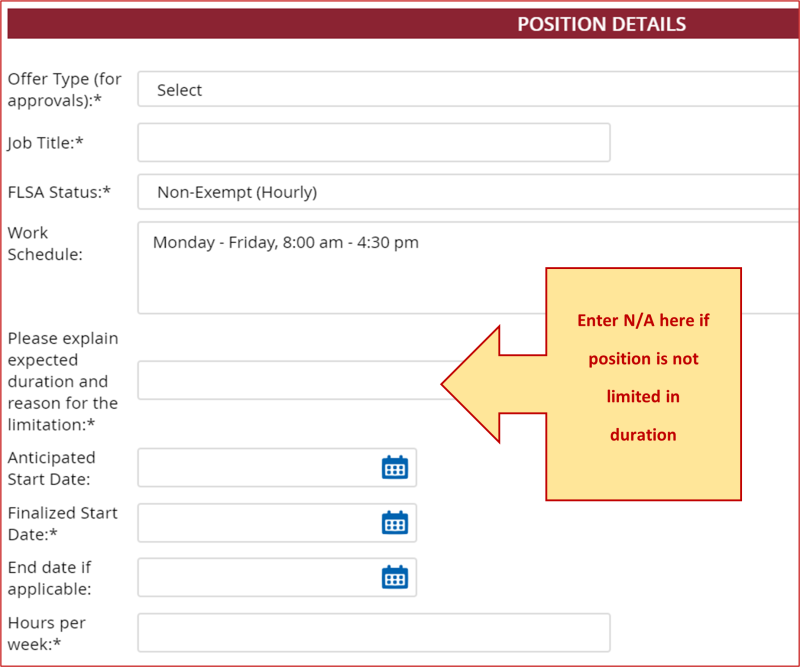
8. The Hiring Manager will need to enter the information in the Offer Details section.
9. Enter the required information in the Posting Details section.
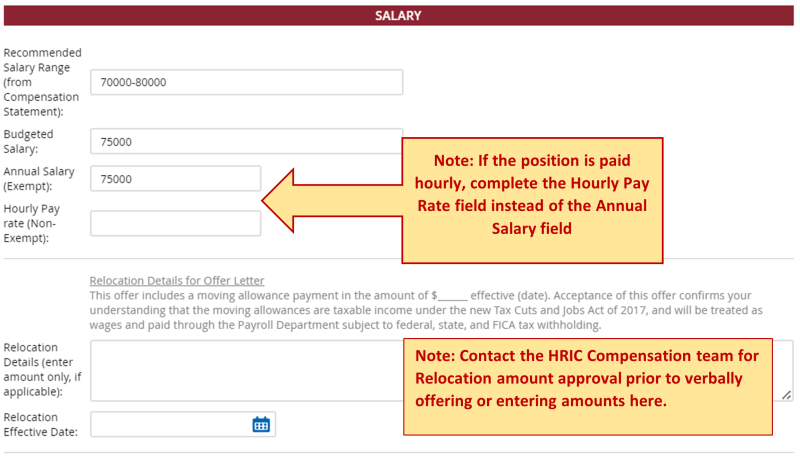
10. The information in the Salary section will be merged into the offer letter.
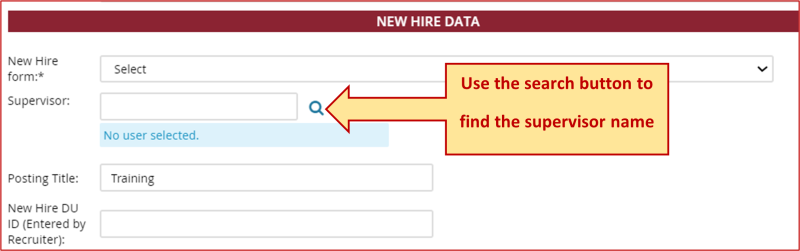
11. In the New Hire Data section, enter in the supervisor using the search function. If known, enter the candidate's DU ID number. The information in the Offer Progress section will update automatically.
12. Offer Documents and Application Documents sections do not require any additional information.
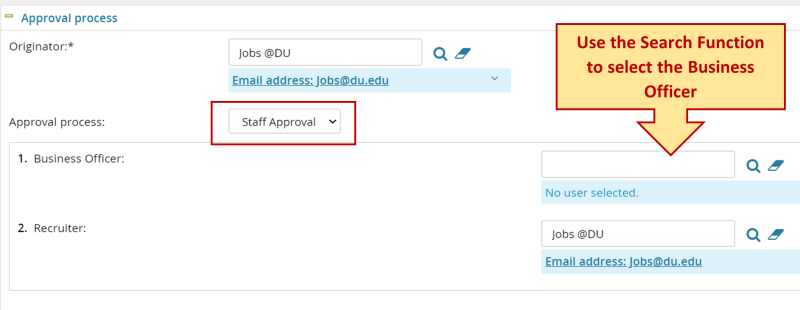
13. In the Approval Process dropdown, select the correct approval process. Enter in the business officer.
14. When finished, click Save and Close. This will initiate the approval chain. Once approved by all parties, the assigned Recruiter will send the applicant the written offer and will change their status to “Written Job Offer Extended (HRIC Use Only)”.
The Job Offer Details must be approved by the Business Officer before the assigned Recruiter can approve and send the offer to the candidate.
Questions? Contact Jobs@du.edu.