







Running the Equal Employment Opportunity (EEO) Report
Learn how to run the Equal Employment Opportunity (EEO) report for a job requisition in Jobs@DU.
This article applies to Hiring Managers and Business Officers.
To run the EEO report, there must be at least 10 applicants in applicant pool. If there are fewer than 10 applicants, the report will not return any data.
Running the EEO Report
1. Log in to Jobs@DU.
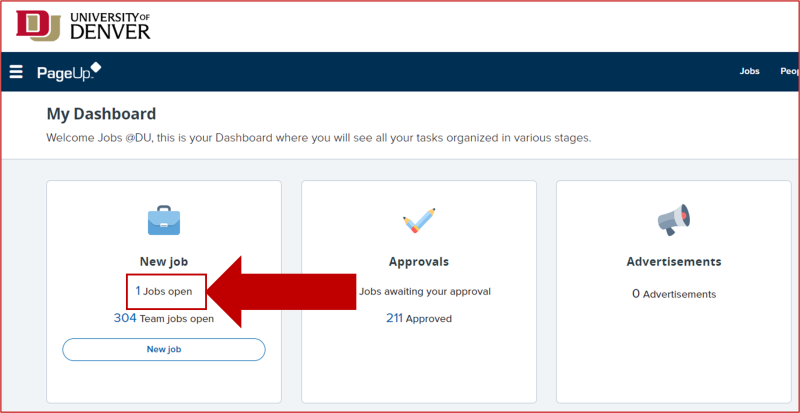
2. From My Dashboard, click the Jobs Open link from the job card.
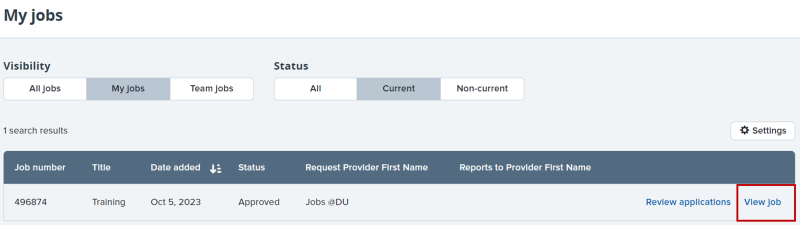
2. Click on the job for which to run the EEO report.
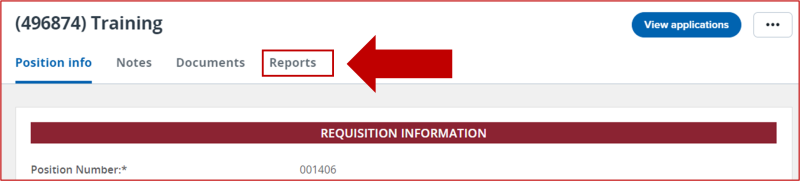
3. Select Reports.
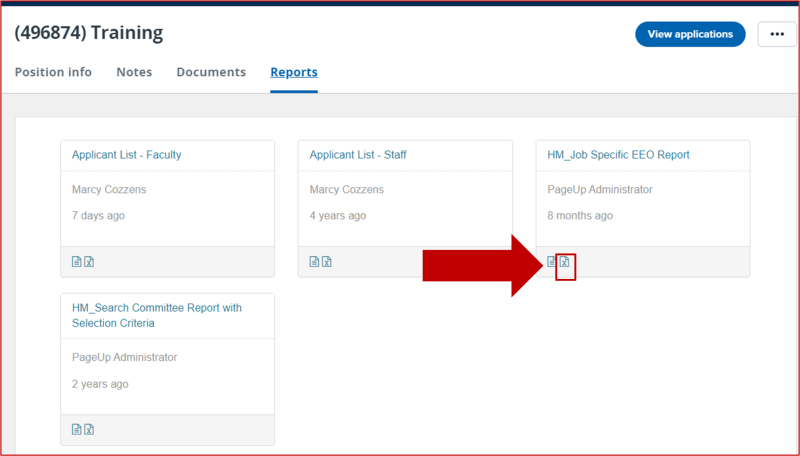
4. Locate the EEO Report tile and click on the Excel X icon.
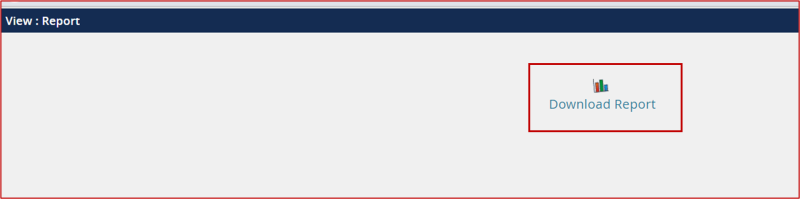
5. A pop-up window will open, select Download Report to download the Excel file.
Viewing the EEO Report
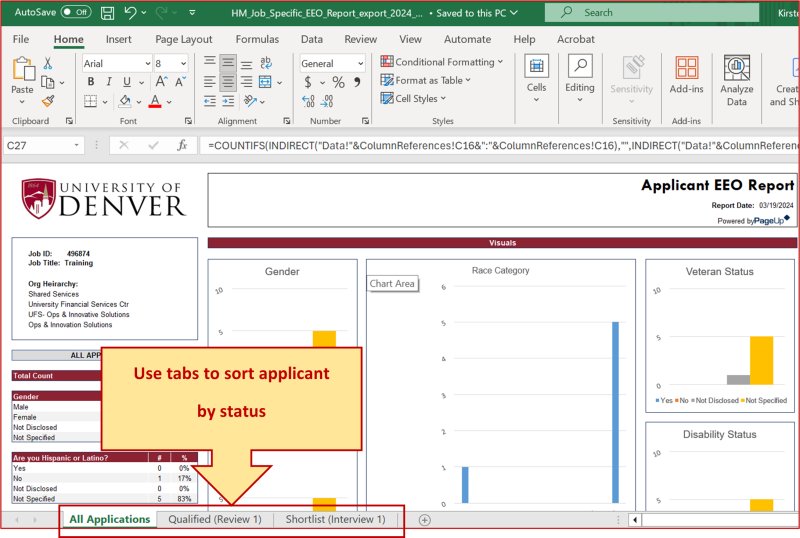
The EEO Report spreadsheet is broken down into the following tabs:
- All Applications: This tab reports on data for all applicants. Remember, there will only be data if there are 10 or more applicants in the applicant pool.
- Qualified (Review 1): This tab shows data for applicants moved to the Qualified stage only.
- Shortlist (Interview 1): This tab shows data for applicants moved to the Interview - Invited stage only.
For more information on how to move applicants into different stages, please see Hiring Manager - Moving Applicants Through Stages.
Questions? Contact Jobs@du.edu.